How to Retrieve Your Capital One Username and Reset Your Password
If you’ve forgotten your Capital One username or password, you can use the Forgot Username or Password? link to get back into your account.
Step 1: Find your username
You must retrieve your username first, even if you only think you've forgotten your password.
- Go to the Sign In screen and select Forgot Username or Password?
If you’re using the Capital One mobile app, you’ll be taken to a web browser.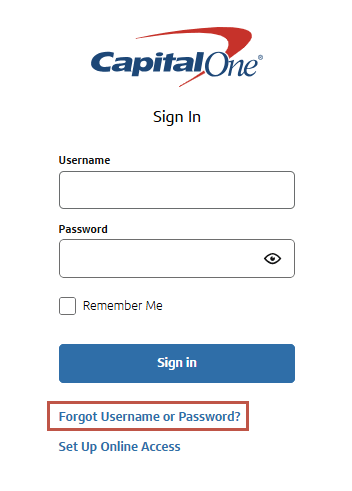
- Provide some basic personal information about yourself and select Find Me.
Please note that the information you enter must exactly match the information on your profile. If any of the information has changed, contact us to update it first.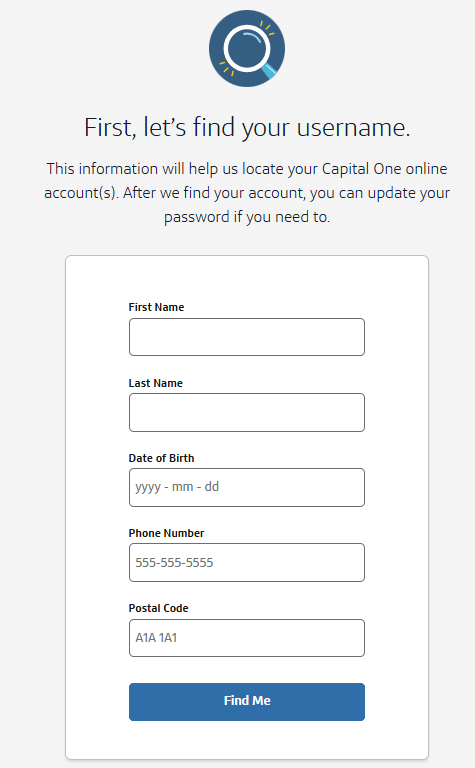
- Your username will be displayed on the screen, and we’ll also send it to you in an email.
Tip: Now that you’ve retrieved your username, we recommend copying and pasting it into the username box to sign in. This helps prevent errors, especially if your username contains special characters or if you’re using a non-English keyboard.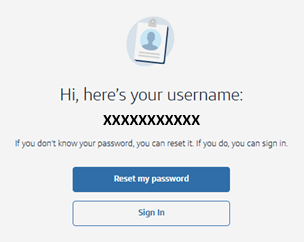
Step 2: Verify your identity
After retrieving your username, select Reset my password to reset your password if you can't remember it. But first, you’ll need to verify your identity.
There are two ways to verify your identity.
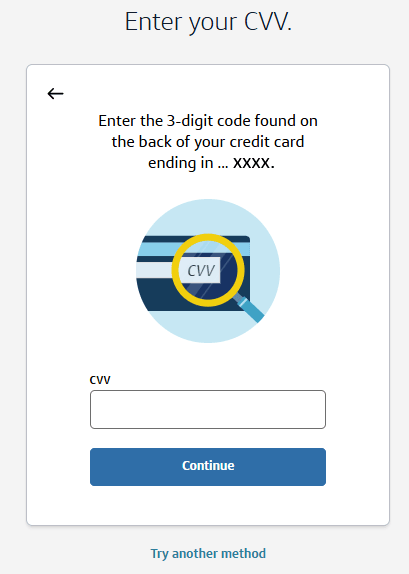
- Using your card’s CVV number:
-
-
- If you have multiple credit cards, select one of them.
- Type the 3-digit CVV number found on the back of your credit card and select Continue.
-
- Using a verification code:
-
-
- If you don’t have your card, select Try another method.
- Choose how you’d like to receive your 6-digit verification code – by text message or phone call.
- Type the 6-digit code and select Submit Code.
Keep in mind that these codes expire after 20 minutes.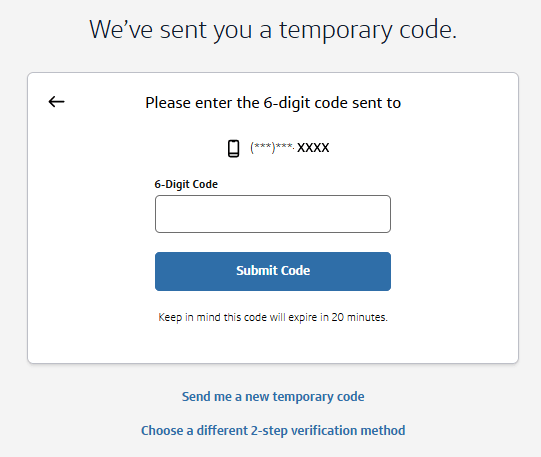
-
Step 3: Create a new password and sign in
Once we’ve verified your identity, you can set up a new password.
- Create a new password based on the guidelines provided.
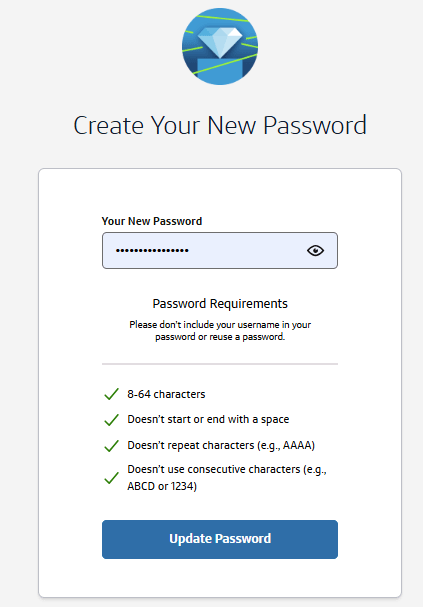
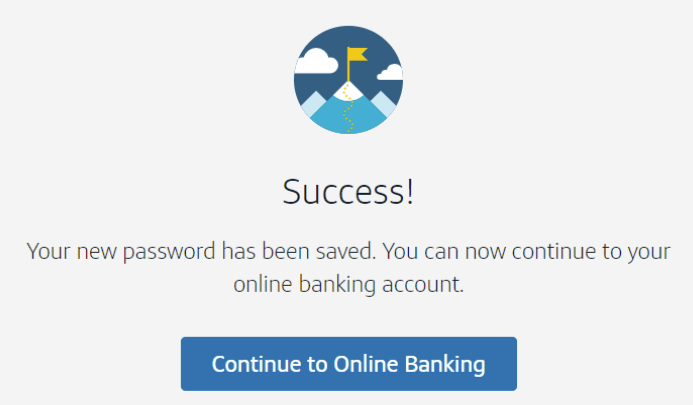
- Select Update Password and then continue to access your online banking account.
Still can’t sign in?
If you still have issues or questions, give us a call at 1-800-481-3239.